

Manual
Your first game
This tutorial makes a small game from nothing, for someone who has never used Unity or Tassix: a ball you roll around a floor with the arrow keys, collecting spinning coins, with a score on the screen. It takes about an hour. On the way you meet everything a game is made of: the editor's panes, objects and their components, materials, C# scripts, physics, prefabs and UI.
Tassix is young, and so is this tutorial. If a step doesn't work as it says, that's Tassix's fault, not yours: the Console pane says what went wrong, and it's worth reporting.
Before you start
You need Tassix built on your computer: Getting started says how. Then open the editor:
cargo run -p tassix_editor_guiYou also need something to edit code in. Visual Studio Code is a good choice: the editor opens scripts in it when it's installed.
Make a project
A project is a folder that holds everything in your game. In the editor, choose File > New Project..., type a name, Coin Roller, pick where to keep it, and save. The editor makes the folder and opens it.
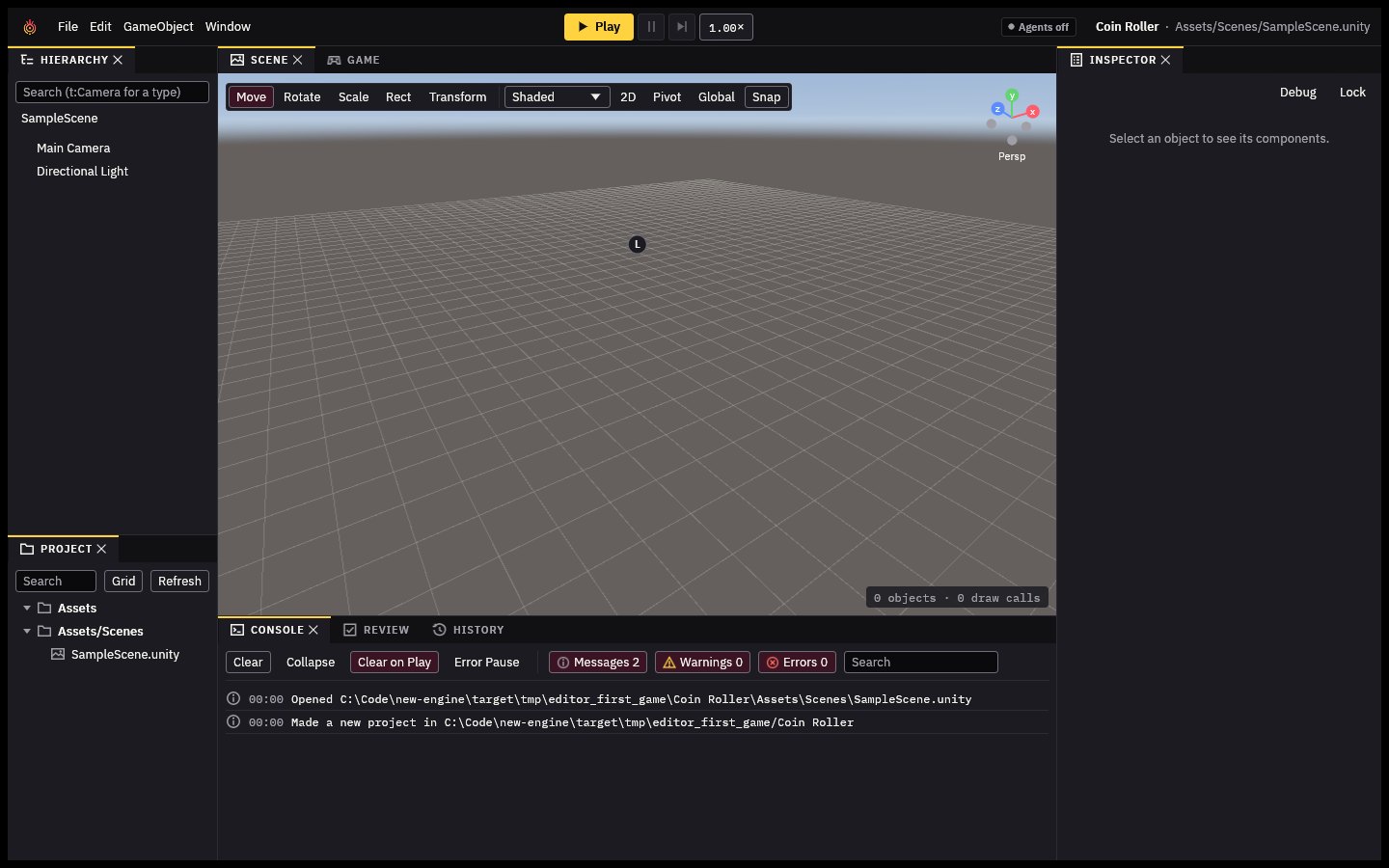
What you see is a scene: a place in your game, holding objects. A new project's scene, SampleScene, has two: a Main Camera, which the game is seen through, and a Directional Light, a sun.
Find your way around
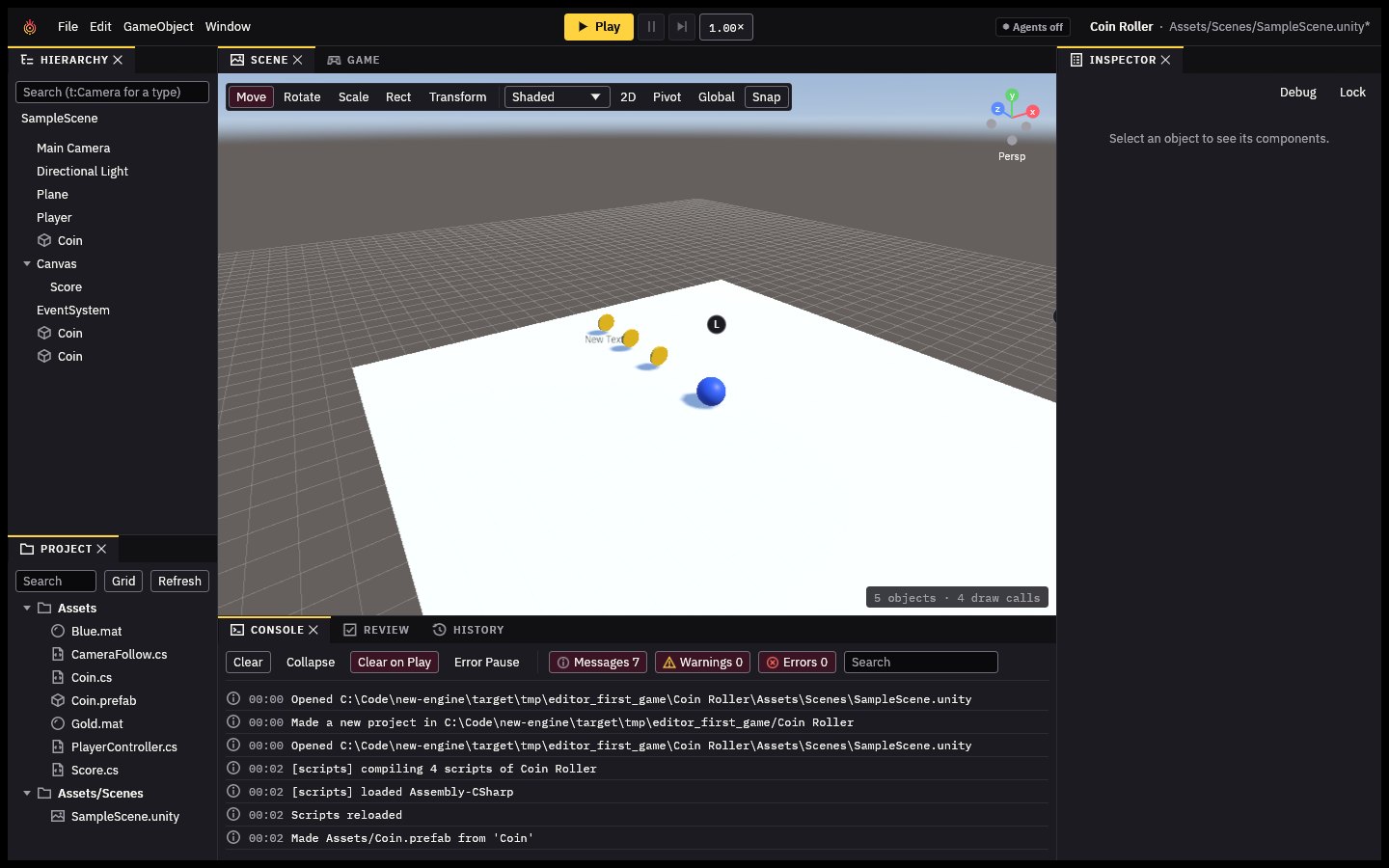
The editor's window is made of panes:
| Pane | What it's for |
|---|---|
| Hierarchy (left, top) | The scene's objects, as a list. Click one to select it. |
| Scene (middle) | The scene in 3D, to look around and arrange objects. |
| Game (the tab beside Scene) | What the camera sees: the game as players will. |
| Inspector (right) | The selected object's components and their settings. |
| Project (left, bottom) | The project's files: scenes, scripts, materials... |
| Console (bottom) | Messages: what the editor did, and errors in your scripts. |
To look around the Scene view: hold the right mouse button and move the mouse to turn, with W A S D held at the same time to fly. Hold Alt and drag with the left button to orbit. The wheel zooms. Select an object and press F to bring it into view.
Every object has a Transform, the first component in the Inspector: its Position, Rotation and Scale, each as X (left and right), Y (up and down) and Z (forward and back). Everything else an object does comes from the components added to it.
A floor
Choose GameObject > 3D Object > Plane. A flat white square appears: the floor. With it selected, set its Scale in the Inspector to 2, 1, 2 (click a field, type the number, press Enter), so it's twice as big.
Look at its components: a MeshFilter (its shape), a MeshRenderer (which draws it) and a MeshCollider (so things can't fall through it).
A ball
Choose GameObject > 3D Object > Sphere. In the Inspector, rename it: click its name at the top (Sphere), type Player and press Enter. Set its Position to 0, 0.5, 0 so it sits on the floor.
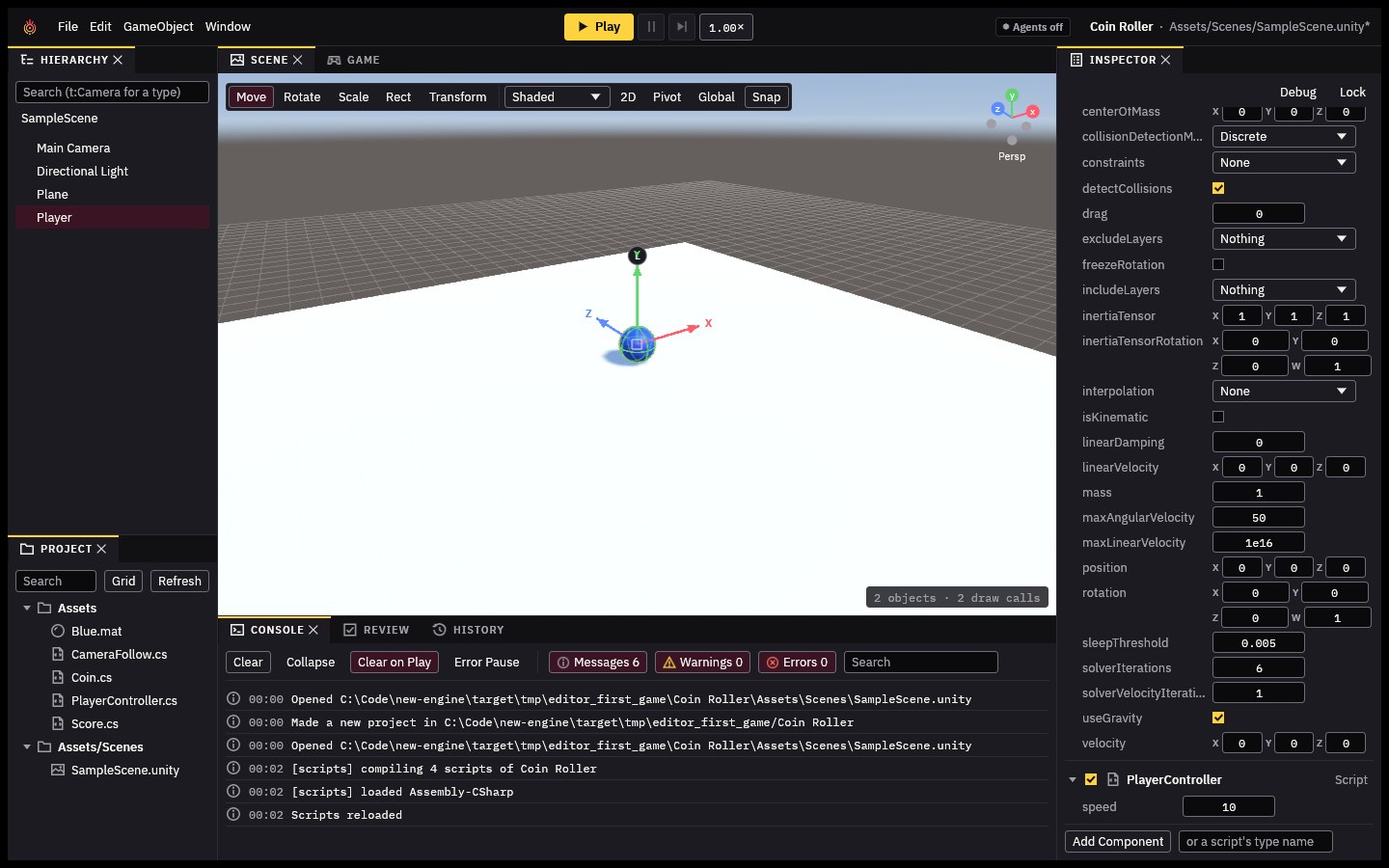
A sphere has a shape and a collider, but nothing moves it yet. Give it physics: click Add Component at the bottom of the Inspector and choose Rigidbody. A Rigidbody makes an object fall, roll and bump into things.
Press Play at the top of the window and the game runs (the Game tab shows it as players will see it): the ball sits on the floor, held up by it. Press Play again (it reads Stop now) to stop. Anything you change while playing is undone when you stop, so always stop before you edit.
Some colour
Colours and surfaces come from materials. In the Project pane, right-click the empty space below the files and choose Create > Material. It appears named New Material, ready to rename: type Blue and press Enter.
With Blue selected, the Inspector shows the material. Click the colour swatch on its _Color row and pick a blue. Then drag Blue from the Project pane onto the ball in the Scene view: the ball turns blue.
Your first script
Scripts are what make a game a game: code that runs while it plays. Tassix runs scripts written in C#, the language Unity uses.
In the Project pane, right-click and choose Create > C# Script. Name it PlayerController and press Enter (the name matters: the code inside uses it). Double-click it to open it in your code editor, and replace what's there with:
using UnityEngine;

public class PlayerController : MonoBehaviour
{
    public float speed = 10f;

    Rigidbody body;

    void Start()
    {
        body = GetComponent<Rigidbody>();
    }

    void FixedUpdate()
    {
        float x = Input.GetAxis("Horizontal");
        float z = Input.GetAxis("Vertical");
        body.AddForce(new Vector3(x, 0f, z) * speed);
    }
}
Save it. After a moment the Console says Scripts reloaded: your script is compiled and the editor knows it. If it shows an error instead, compare your code with the one above, letter by letter.
What it says: PlayerController is a kind of MonoBehaviour, a script that sits on an object as one of its components. Start runs once, when the game starts: it finds the ball's Rigidbody. FixedUpdate runs many times a second, in step with physics: it reads the arrow keys (or W A S D) as numbers from -1 to 1 and pushes the ball that way. speed is public, so it shows in the Inspector, where you can change it without touching the code.
Now put it on the ball: select Player, click Add Component, and choose Scripts > PlayerController. Press Play, click in the Game view so it gets your keys, and roll the ball with the arrow keys. Stop when you're done.
A camera that follows
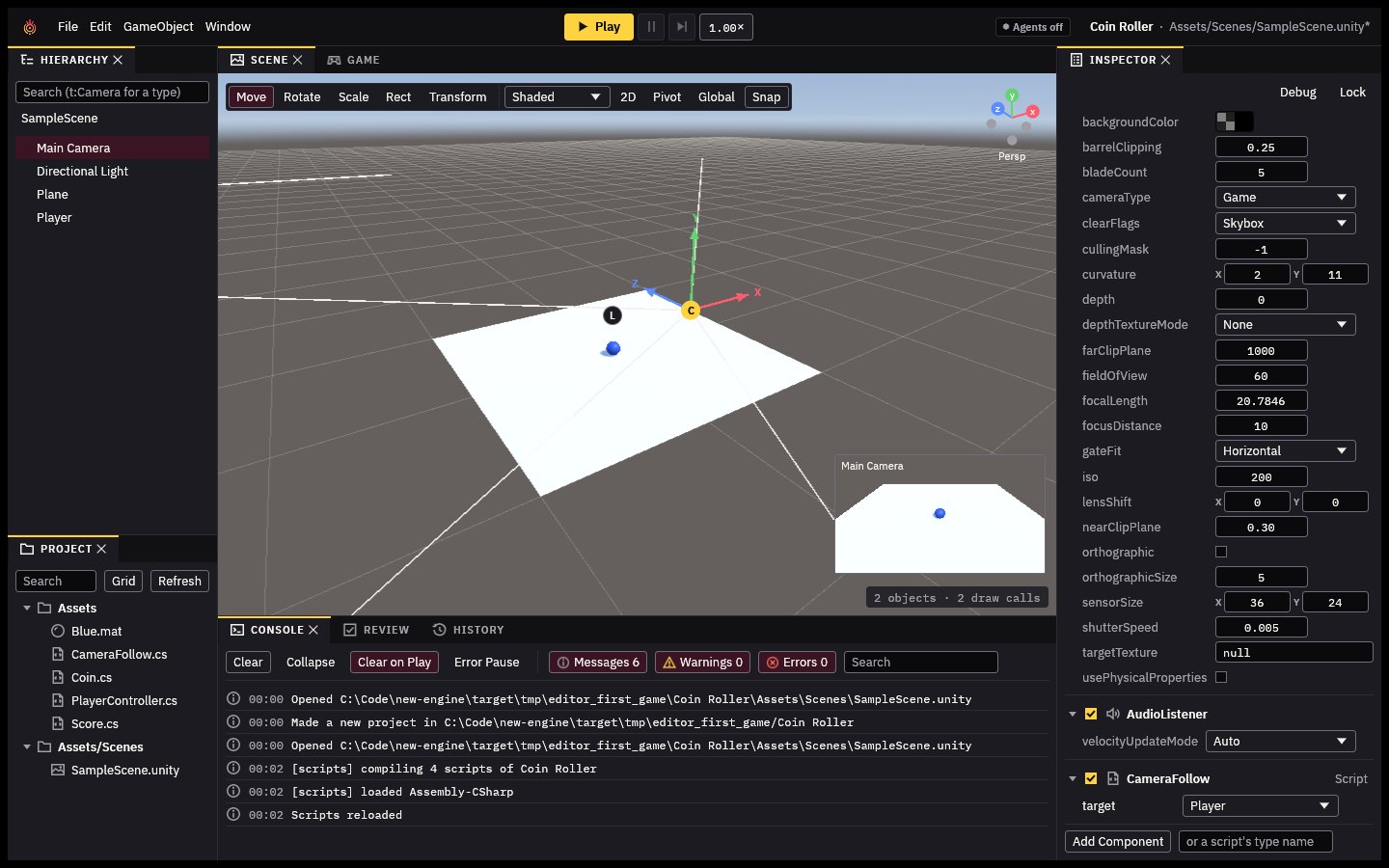
The ball rolls off the screen. Make the camera follow it. First move the camera somewhere better: select Main Camera and set its Position to 0, 6, -8 and its Rotation to 35, 0, 0, so it looks down at the floor from behind.
Make a script named CameraFollow, as before:
using UnityEngine;

public class CameraFollow : MonoBehaviour
{
    public Transform target;

    Vector3 offset;

    void Start()
    {
        offset = transform.position - target.position;
    }

    void LateUpdate()
    {
        transform.position = target.position + offset;
    }
}
It remembers how far the camera starts from its target, and after everything else has moved each frame (LateUpdate), it puts the camera that far from it again.
Add it to Main Camera (Add Component > Scripts > CameraFollow). Its target field is empty: drag Player from the Hierarchy onto it. Play: the camera follows the ball.
Coins and a score
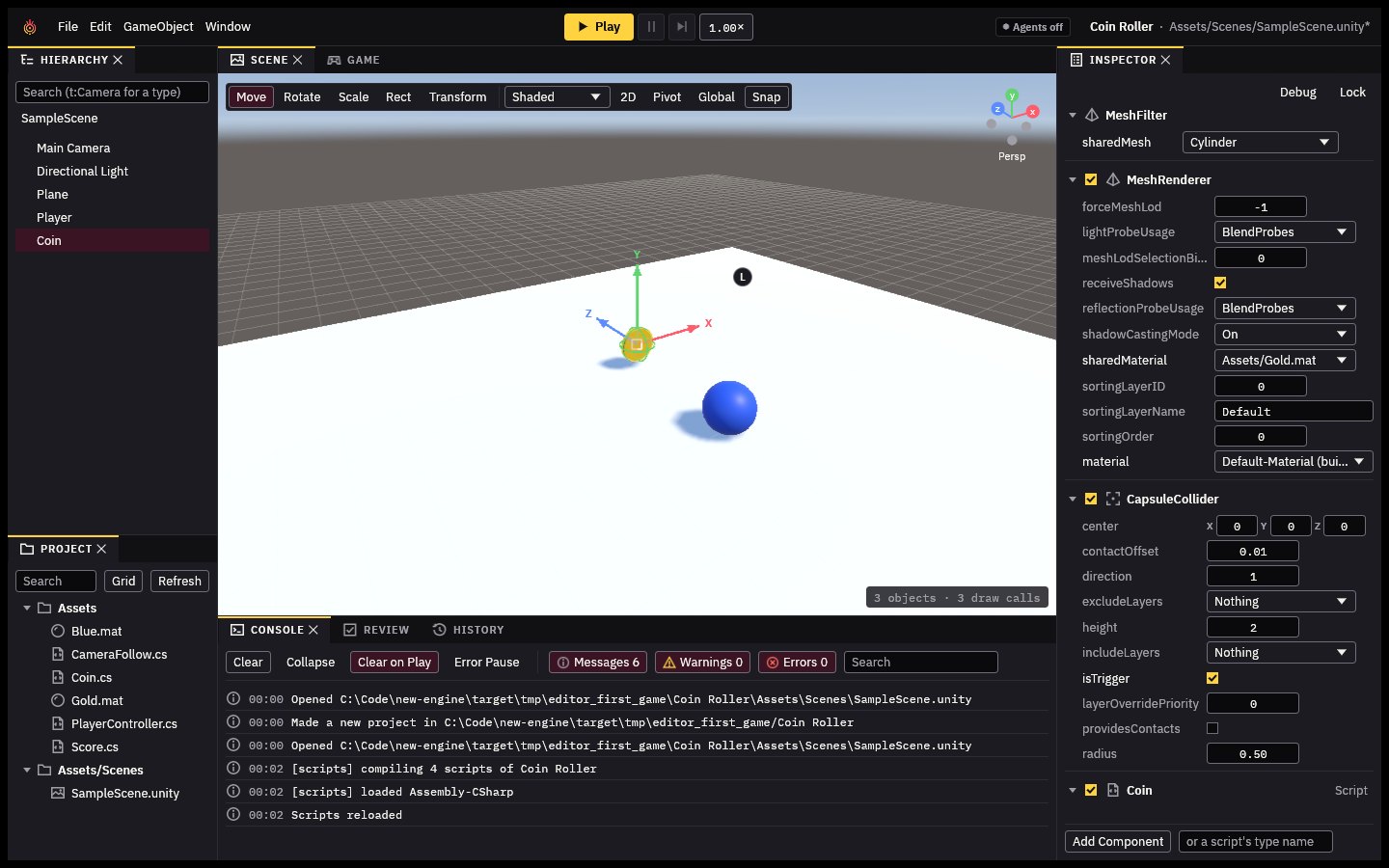
A coin is a short cylinder standing on its edge. Choose GameObject > 3D Object > Cylinder, rename it Coin, and set its Position to 0, 0.6, 3, its Rotation to 90, 0, 0 and its Scale to 0.8, 0.05, 0.8. Make a material named Gold, colour it yellow, and drop it on the coin.
The ball should pass through coins, not bump into them. Find the coin's CapsuleCollider in the Inspector and tick isTrigger: a trigger collider doesn't block anything, it tells scripts when something enters it.
This step needs two scripts that use each other, so make both before you look at the Console. One for the coins, named Coin:
using UnityEngine;

public class Coin : MonoBehaviour
{
    void Update()
    {
        transform.Rotate(0f, 90f * Time.deltaTime, 0f, Space.World);
    }

    void OnTriggerEnter(Collider other)
    {
        if (other.GetComponent<PlayerController>() != null)
        {
            FindFirstObjectByType<Score>().AddPoint();
            Destroy(gameObject);
        }
    }
}
Update runs every frame, turning the coin a little (90 degrees a second: Time.deltaTime is how long the last frame took). OnTriggerEnter runs when something enters the coin's trigger: if it's the ball, the coin tells the score and destroys itself.
And one for the score, named Score:
using UnityEngine;
using UnityEngine.UI;

public class Score : MonoBehaviour
{
    Text label;
    int points;
    int coins;

    void Start()
    {
        label = GetComponent<Text>();
        coins = FindObjectsByType<Coin>(FindObjectsSortMode.None).Length;

        // Big white letters across the top of the screen.
        label.fontSize = 36;
        label.color = Color.white;
        label.alignment = TextAnchor.UpperCenter;
        RectTransform box = label.rectTransform;
        box.anchorMin = new Vector2(0f, 1f);
        box.anchorMax = new Vector2(1f, 1f);
        box.pivot = new Vector2(0.5f, 1f);
        box.sizeDelta = new Vector2(0f, 60f);
        box.anchoredPosition = new Vector2(0f, -20f);
        Show();
    }

    public void AddPoint()
    {
        points++;
        Show();
    }

    void Show()
    {
        label.text = points == coins ? "You got them all!" : "Coins: " + points + " / " + coins;
    }
}
It counts the coins when the game starts and shows how many you've got.
Add Coin to the coin (Add Component > Scripts > Coin).
For the score, choose GameObject > UI > Text (Legacy): it makes a Canvas, the screen's surface for UI, with a Text on it. Select the Text, rename it Score, and add the Score script to it.
Play, and roll into the coin: it disappears and the score says you got them all, which is easy with one coin.
Many coins: a prefab
One coin isn't much of a game. Rather than building more by hand, make the coin a prefab: a saved object you can place as many copies of as you like, all kept the same. Drag Coin from the Hierarchy into the Project pane. A Coin.prefab appears there, and the coin in the Hierarchy is now a copy of it.
Drag Coin.prefab from the Project pane into the Scene view, again and again, to place coins around the floor. Each lands where you drop it.
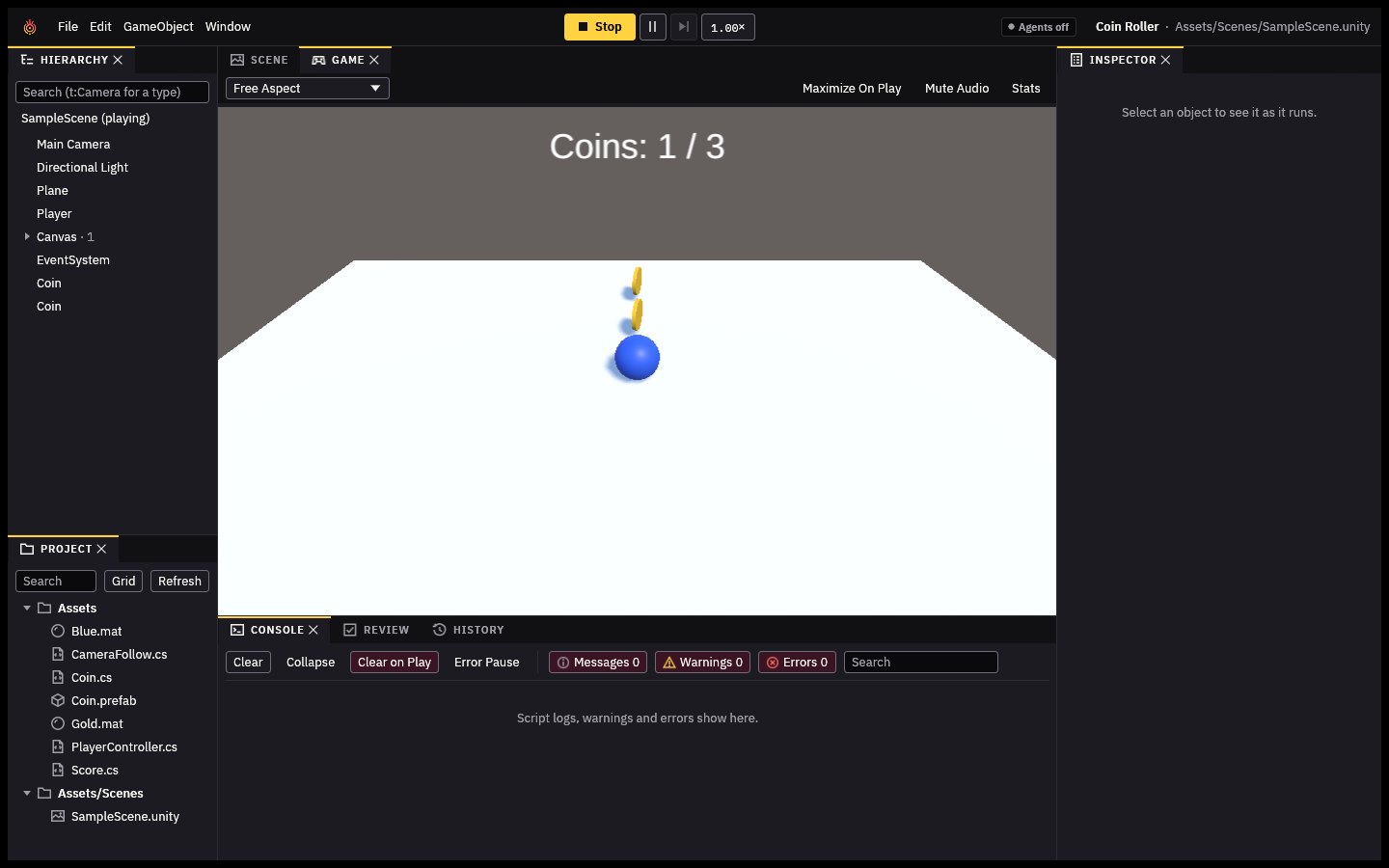
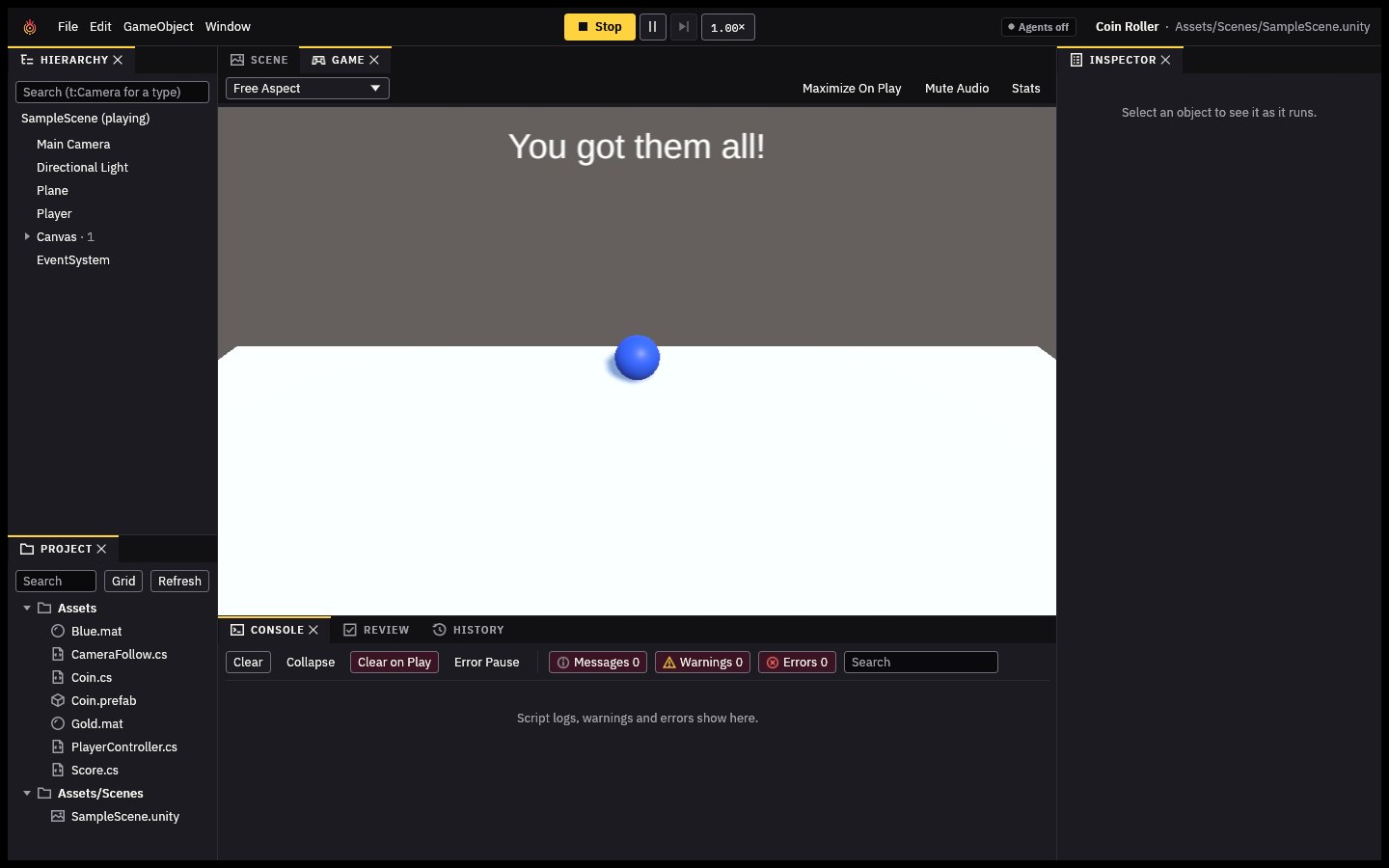
Play: the score counts every coin, and when you've rolled over them all, says so.
Save it
Choose File > Save (Ctrl+S). The scene is saved into Assets/Scenes/SampleScene.unity. Save often.
Share it
Choose File > Build And Run: Tassix builds your game into a folder of its own and starts it, outside the editor. That folder is your game: zip it and send it to someone, who can play it without installing anything. File > Build Settings... says where it goes and what it's called.
What next
Some things to try with what you know now:
- Change the Player's
speedin the Inspector while playing, to find one you like (and set it again after you stop: changes while playing are undone). - Put walls around the floor: cubes (GameObject > 3D Object > Cube) scaled into long thin boxes.
- Make coins that move: a script that changes
transform.positioninUpdate.
Tassix runs scripts written for Unity, so Unity's tutorials, books and answers online apply to it too. The Scripting API lists everything Tassix has, and compatibility what doesn't work yet.
From docs/first-game.md in the repository.